Trend Tool – Configuring Display Information
Note: You can change configuration settings for this tool in Run mode. However, these settings usually only persist for the current runtime session. When you close the CygNet Studio screen on which the tool resides, the tool settings may revert to those originally configured in Edit mode.
The Display Information page specifies the mode by which to display certain kinds of information on a trend.
|
Trend Tool - Display Information Page |
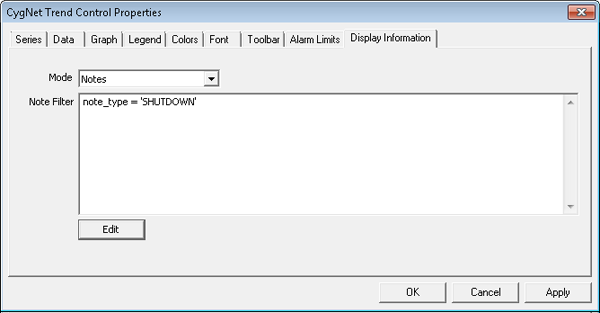
Display Information Page Properties
The following table lists and describes Display Information page properties.
| Property | Description |
|---|---|
|
Mode |
Enables you to select from the following information display modes:
|
|
Note Filter |
Enables you to create and apply a note filter at design time. See Using CygNet Filter Rules, Note Attributes, and Notes. |
|
Edit |
Click to edit the contents of the Note Filter field. |


